2FA (Two-factor Authentication) or MFA (Multi-factor Authentication) is an additional security step you can implement on many of your online accounts to increase the levels of security.
In a nutshell, 2FA protects your accounts as not only will you need your password to log in, but you’ll also need a code to verify your identity. This means if your password gets stolen or leaked, any attempt to sign in will be prevented by this request.
Table of Contents:
Section 1 – Why do I need 2FA?
As mentioned above, 2FA acts as an important barrier between your password and your account. Whilst having a strong password is a great first step – if your password gets exposed in a breach, it doesn’t matter how strong it is.
2FA gives you extra peace of mind that your account is safe even if the aforementioned happens.
You might find that financial/banking websites and apps force you to set up 2FA, but I wouldn’t stop there when it comes to protecting your online life.
Section 2 – Which 2FA option should I use?
Much like password managers, there are a plethora of options when it comes to setting up MFA. Some are excellent, some are average and some are bad in terms of protecting your privacy. 2FA options come in both virtual and physical form.
Some excellent 2FA options come built-in to password managers – for example both Bitwarden and Proton Pass have 2FA options – although it is worth being aware that these are often premium features and require a paid plan.
If you have bought into the Bitwarden or Proton eco-systems for password management, these are both very viable and very secure options – as mentioned in my last blog post. This is often ideal for convenience as your password and 2FA code are in the same place, though convenience doesn’t always necessarily mean secure.
We already know your data is end-to-end encrypted with the two above options, so what is the issue you may be thinking? The problem lies with if your database password is ever socially engineered out of you, or, for example, it’s physically written down location was compromised. There is a heightened risk of this if you are a political activist, or journalist, for example, as these are usually the individuals who are targeted for these kind of attempts – but this doesn’t mean it couldn’t happen to you!
Another potential issue is if a service ever went offline, either temporarily, or permanently. In this scenario, all your eggs are in one basket and you have potentially lost your passwords and your 2FA codes. This is where the importance of backups (post coming soon!) and mitigating risk by using different products may help.
In some scenarios, you may wish to utilise a physical hardware key, such as a YubiKey. These can increase your security by taking your 2FA tokens offline, meaning that when you wish to log into a service which supports physical security keys, you simply plug it into your computer or phone.
In my case, I utilise one physical hardware key, and two authenticator apps for my 2FA management.
Section 3 – How do I set up 2FA?
Setting up an authenticator app is super simple. 2FA settings can usually be found within the website security/login settings.
You’ll be presented with a QR code, as well as a secret key, which you can input if the QR code doesn’t scan.
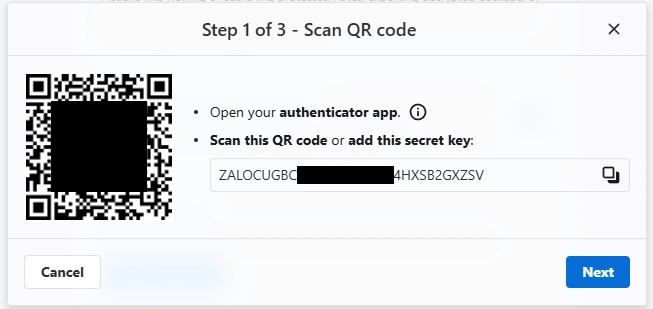
Scan this QR code with your authenticator app of choice and click ‘Next’.
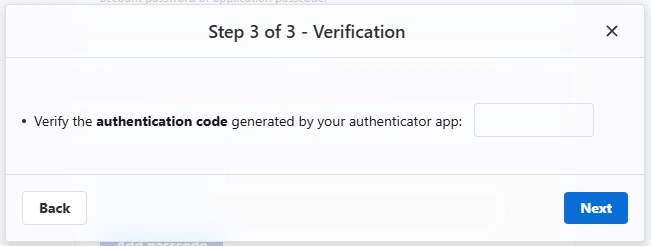
You should then be asked to verify this code, enter this into the box.